Configure Criteria for Availability of Add-Ons
Stay is enhanced to allow users to define a criteria that must be satisfied for the availability of Add-Ons in reservations and groups. The Add-Ons will be available only when each of the selected criteria is satisfied.
To support this enhancement, a new section, Apply To, has been added to the Add a New Add-Ons pop-up screen (Settings ➜ Rates ➜ Add-Ons ➜ Add). This section will be displayed only when the Apply as Auto Recurring Charge checkbox is not selected for the Add-On. This section displays the following tabs:
|
Tab |
Description |
|---|---|
|
Rate Code |
Displays the rate plan codes of the active rate plans available at the property. Only rate plans that are available for the selected start and end dates of Add-Ons are displayed. The Add-On will be available only for reservations booked using the selected rate plans with Add-Ons selected. When there are no active rate plans available at the property, the following message will be displayed: No data available for this category. |
|
Group Status |
Displays the following group statuses:
The Add-On will be available for group reservations for the selected statuses only in the Choose Add-Ons pop-up screen. |
|
Package Code |
Displays the package codes of the active packages available at the property. Only packages that are available for the selected start and end dates of Add-Ons are displayed. The Add-On will be available only for package reservations booked using the selected packages with Add-Ons selected. When there are no active packages available at the property, the following message will be displayed: No data available for this category. |
|
VIP Level |
Displays all VIP statuses configured at the property. Users must either select a VIP status or enable the Not Applicable flag to proceed with the Add-On configuration. When users do not prefer to select VIP status as a criterion, the Not Applicable flag must be enabled. This is a mandatory setting. |
|
Loyalty |
Displays the loyalty programs configured at the property. Users must either select a loyalty program or enable the Not Applicable flag to proceed with the Add-On configuration. When users do not prefer to select loyalty program as a criterion, the Not Applicable flag must be enabled. This is a mandatory setting. |
|
Buildings |
Displays the buildings configured at the property. Users must either select a building or enable the Not Applicable flag to proceed with the Add-On configuration. When users do not prefer to select buildings as a criterion, the Not Applicable flag must be enabled. This is a mandatory setting. |
|
Room Class |
Displays the room classes configured at the property. Users must either select a room class or enable the Not Applicable flag to proceed with the Add-On configuration. When users do not prefer to select room class as a criterion, the Not Applicable flag must be enabled. This is a mandatory setting. |
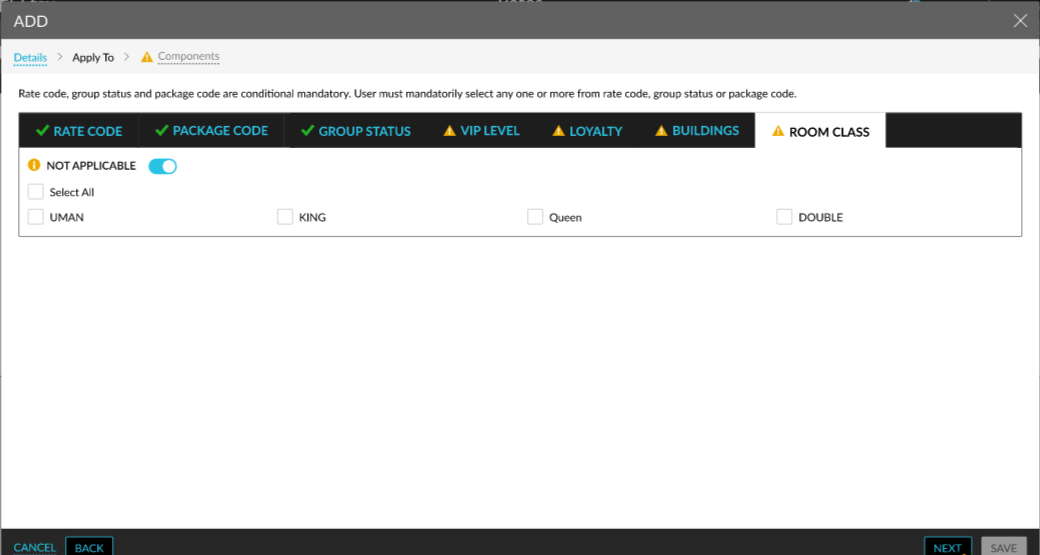
Either Rate Code, Package Code, or Group Status must be selected for an Add-On to be available for a reservation. The Next button in the Add pop-up screen will not be enabled for selection when the user does not choose either of the three options.
For example, an Add-On with the Rate Code, VIP Level, and Buildings selected will be applicable only for reservations created from the selected buildings using the selected rate plans and associated with the selected VIP levels.
For existing Add-Ons, all the options in the Apply To section will be selected by default. For reservations imported to the property from the Profile & Reservations Import/Export screen (All Settings ➜ General ➜ Profile & Reservations Import/Export), the Add-Ons will be added to the reservations successfully when they satisfy the criteria configured. When the Add-On does not match the configured criteria, the following message will be displayed in the Log Details pop-up screen: Add-Ons criteria doesn't match.